In addition to ledgers and forms, a third data source type can be configured within the project – the document. This additional data source type allows the upload, storage and management of HTML\XHTML files (as well as any related image, stylesheet or script files) and makes them available for iXBRL tagging in the Tagging tool.
Document configuration
Management of all documents associated with the project is performed in the Documents tab, located between the Forms and Permissions tabs in the Project configuration.
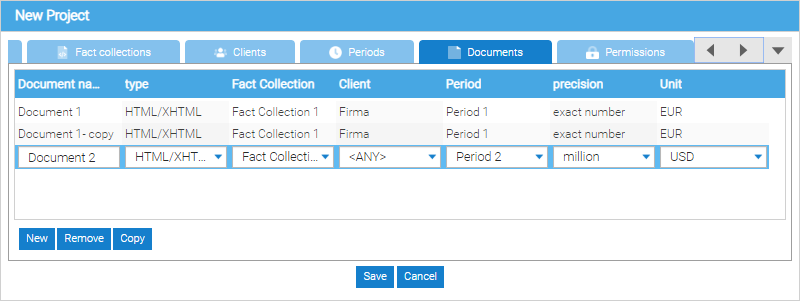
The Documents tab contains the Documents grid that lists all of the documents (i.e. data sources) added to the project and their properties:
- The title of the document can be configured in the Name column
Note: The title of the document (i.e. the document Name) has to be unique within the project
- The document type is shown in the Type column. For HTML\XHTML reports, the type is HTML\XHTML
- The fact collection used by the document is shown in the Fact collection column
- The default client the document is created for can be configured in the Client column by selecting one of the already configured clients from the drop down.
- The default period of the document can be configured in the Period column by selecting one of the already configured periods from the drop down
- The default precision in which the values are expected to be reported in the document can be configured in the Precision column by selecting
- The default currency used in the document can be configured in the Unit column by selecting the 3-letter ISO code of the currency from the drop-down.
The entries in the Documents grid are sortable; by default, the entries are sorted by the Name column in a lexicographically descending order All changes made to the document's configuration are applied on saving the entire project configuration.
Default property configuration
By default:
- The oldest (i.e. first created) fact collection is configured in the Fact collection column
- The oldest (i.e. first created) top-level client is configured in the Client column
- The main period is configured in the Period column
- The project default precision is configured in the Precision column
- The project default currency is configured in the Unit column
Document management
By default (i.e. when creating a new project), a document titled Document 1 will be automatically created for the user, once at least one fact collection, client and period are configured for the project.
Additional documents can be created:
- by clicking the Add button, to create a new document with the default property configuration
- by clicking the Copy button, to create a new document that copies the property configuration of an existing document
Note: Copying a document does not copy its contents, only its configuration. In other words, references (i.e. links or paths) to the external data sources (i.e. HTML\XHTML files) configured for the source document will not be copied over to the newly created document
An existing document can be removed by selecting its entry in the grid and clicking Remove. Removing a document results in:
- The document no longer being accessible via the Documents menu\ribbon
- Deletion of all entries related to the document from the Documents history
- Deletion of all configured external data sources (i.e. uploaded HTML\XHTML files as well as any related image, stylesheet or script files) if such data sources exist
Document access
All documents configured in the project are accessible:
- In the ribbon view, via the Documents ribbon section
- In the menu view, via the Documents menu located in the Main toolbar
In order to access a document, the project where the document resides needs to be open first; otherwise, the ribbon section will not be visible\the menu items will be disabled.
Document import
In order for the document to be accessible and usable in the Tagging tool, the physical HTML\XHTML files (as well as any related image, stylesheet or script files) need to be imported into the document. This can be done by clicking the Import button in the Documents ribbon sectionDocuments menu and selecting the appropriate import option from the submenu that appears
HTML\XHTML import
This option allows the import of an HTML\XHTML file into a pre-configured document that's selected in the Document drop-down menu. Using this dialog, both a single HTML\XHTML file that contains all of its images and stylings inline or a zip archive containing the HTML\XHTML file and all of the referenced image, stylesheet or script files, can be imported into a document; please note that no other files or file formats are supported for import using this dialog.
Note: If the document that's being specified as the import destination is not empty (i.e. already contains an HTML\XHTML file, etc.) its contents will be overwritten and cannot be recovered. 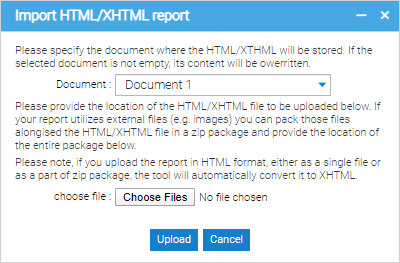
Note: If a document is open for editing when the HTML\XHTML import button is clicked, the user is notified that this operation may potentially discard their currently open document if they select it as the import destination
Reporting package import
This option allows to quickly import an entire reporting package generated by the Tagging tool. Importing the package will automatically create a new project, configured with the reporting taxonomy and the taxonomy extension and a pre-configured document containing the tagged HTML\XHTML report (and any referenced image, stylesheet or script files)
Document editing
Once the external data sources have been imported into a document, that document can be opened for editing in the Tagging tool by clicking the Edit button in the Documents ribbon section\Documents menu and selecting its name and clicking Open in the Edit documents dialog that will appear.
Concurrent document access is supported – a document that's currently open for editing can be opened by another user independently and they will be notified that the document is currently being edited.
In case the edits result in conflicting changes, the changes made by the user that saves the document last will be the ones that will be persisted.
Document permissions
Access to documents is controlled via the following permissions located in the project configuration Permissions tab:
- Users with the Manage documents permission can configure (i.e. create, remove and copy documents) in the project's configuration
- Users with the Modify documents permission can access the Documents menu\ribbon and all of its functionalities including:
- Upload the external data sources into the document
- Edit the document with the Tagging tool
- View Document history
Document history
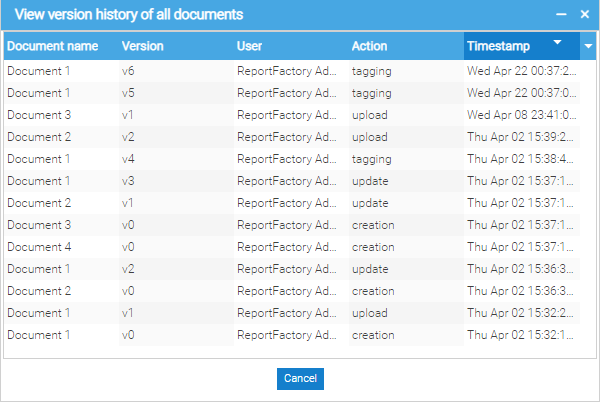
All actions that affect the currently configured documents in the project are tracked in the Document history that can be accessed by clicking View history in the Documents ribbon sectionDocuments menu. The Document history dialog lists the following details on the tracked actions:
- The Document name column contains the title of the affected document
- The Version column contains the version of the document that was automatically created by the tracked action. The document creation automatically sets the document to version 0; each subsequent action performed on the document automatically increments its version number by 1
- The User column contains the user name of the person that performed the action
- The Action column contains the type of action that was performed. The following types of actions are being tracked:
- Creation – the document has been added or copied
- Update – the document configuration has been changed
- Upload – HTML\XHTML file or a zip archive has been imported into the document
- Tagging – the imported HTML\XHTRML file has been tagged and those tags have been saved
- The Timestamp column contains the date and time the action took place
- The entries in the Documents history grid are sortable; by default, the entries are sorted by the Timestamp column in a descending order
Document impact
Project import/export
In addition to the existing functionalities, exporting/importing the project also exports/imports:
- the document configuration for all documents
- the latest version of the imported HTML\XHTML report (and any referenced image, stylesheet or script files) with all saved tags, if any
- the extension taxonomy
- the Document history
Project roll forward
Rolling forward the project updates the document's period configuration by rolling forward the period for which the document is configured