...
| Tip |
|---|
To save a project, at least one taxonomy must be added to the project. |
Fact collections
In the tab fact collections data is summarized. The organization of the fact collection is hierarchical, similar to a directory structure in a file system.The values of the positions of a an XBRL taxonomy are called facts. The term “fact” is used in different reporting tools in the ReportFactory when it comes to the generation of position values. A collection of facts is used for a user-defined subdivision of the generated project facts to the positions of a XBRL taxonomy.
The subdivision of facts can be useful to display only a certain part of the facts in the reports.
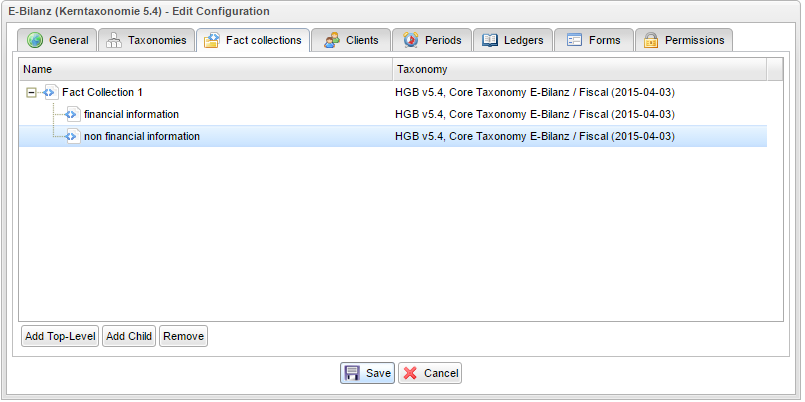
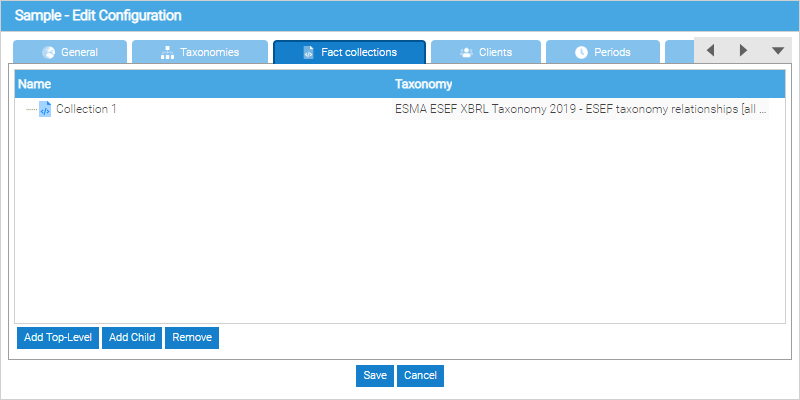
To create a collection of facts, the buttons "Add Top-Level" and “Add Child" can be used. "Add Top-Level" creates a new collection of facts, which is not a subdivision of an existing collection of facts. "Add Child" creates a collection of facts under the currently selected collection of facts. By clicking "Remove" an existing collection of facts can be removed
| Note |
|---|
Please check before removing a collection of facts, whether account balances or forms were created for this fact collection! If they exist, they must be deleted first, after that the collection of facts can be removed. |
The subdivision of the facts in several collections of facts has no predetermined meaning. It is not a prerequisite for creating a XBRL filing. As a result all the facts can be created in a single collection of facts (without subdivision).In the application, these facts are organized in fact collections.
| Tip |
|---|
To save a project, at least one fact collection must be created. |
Clients
In a report project company reports for multiple clients can be created. A XBRL filing is created for each client. Thus, from From the perspective of reporting, the term “client” client is an essential criterion for the selection of facts used to create a XBRL filing .
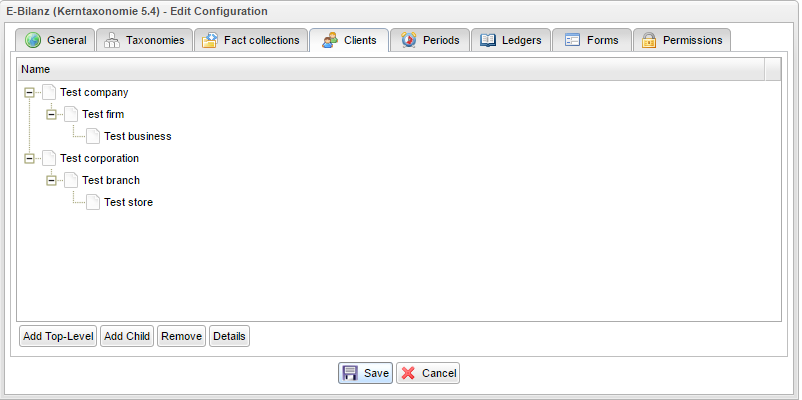
The clients can be sorted hierarchically by pressing “add top-level” or “add child”.
If a client is created under a parent client, then the parent client can be choosen in the project configuration in tab “ledgers” or “forms” to create a balance list or a form exactly for this client and all clients below.
The structuring of clients may for example be used to define a subset of clients in the project account assignments for a standard chart of accounts and to create different mappings for other clients.
...
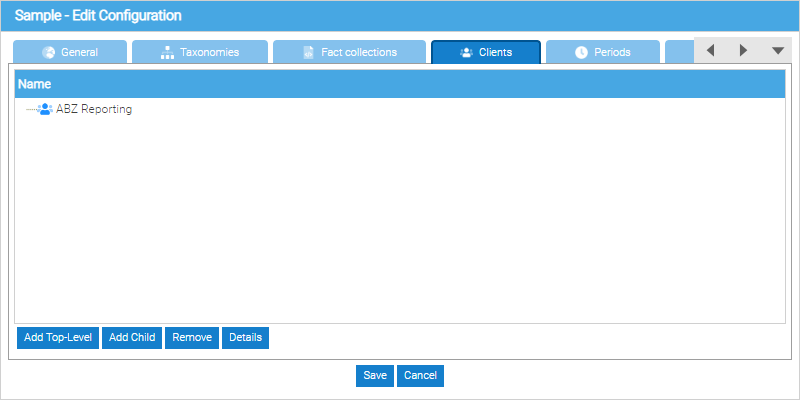
for the purposes of ESEF reporting represents the reporting entity itself
| Tip |
|---|
To save a project at least one client must be created, in order to save a project. |
Periods
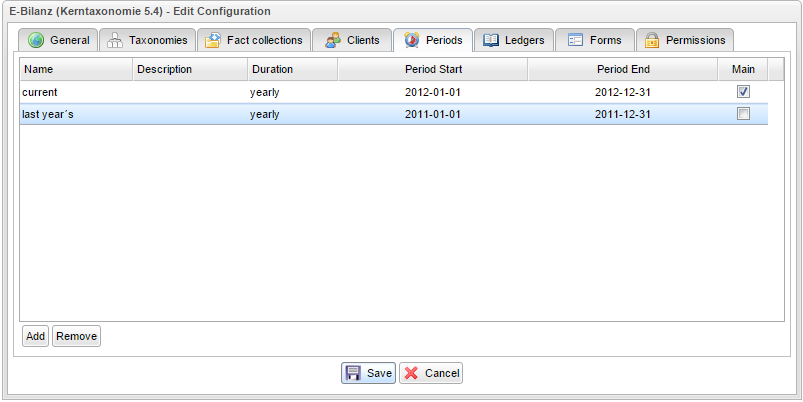
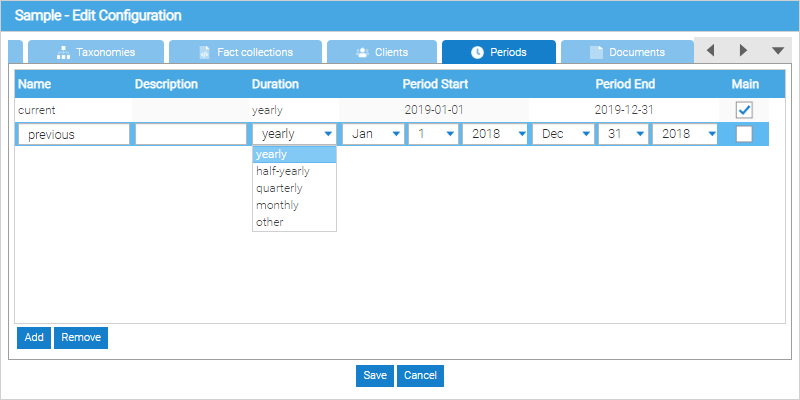
Within a project, facts for all report-Fact for different reporting periods can be defined . In within the same project, Therefore, in every project, there should be exactly one period is leading. This is leading period that represents the current reporting period. When creating periods it is necessary to ensure that the current reporting period is marked as "main" - provided with a hook in the control boxthe main one by selecting the appropriate checkbox.
For a any period, the following information can be editprovided:
- Name
...
- - the period name. This name will be used in the column
...
- headers of the data visualization reports
...
- . Our recommendation is to pick the period names carefully particularly if you are expecting to roll the project forward so that the names can be used in the
...
- upcoming reporting periods
...
- .
- Description
...
- - text description of a reporting period
- Duration
...
- - the timeframe the period encompasses. Can be annual,
...
- semiannual, quarterly, or
...
- custom. If the custom option selected, the beginning and end of the period can be set
...
- directly - otherwise, the
...
- end date
...
Beginning of the period: beginning of the reporting period
End of the period: the end of the reporting period
Main: Defining the leading period. This selection is only possible for a period in the project.
...
- will be automatically adjusted based on the start date and the selected duration.
- Period start - the date the reporting period begins
- Period end - the date the reporting period ends
- Main - selecting this checkbox marks the period as the leading one. The selection is possible only for one period at a time within the project.
| Tip |
|---|
In order to save a project, at least one leading period must be configured in the project |
Documents
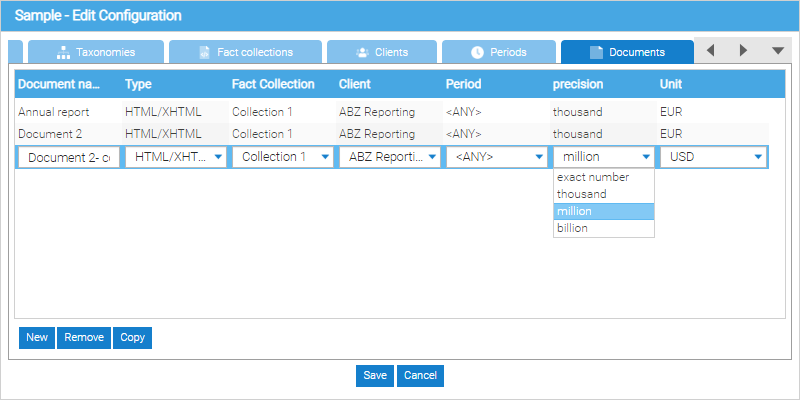
Documents are created and managed from the Documents tab. More information on Documents can be found in this section of the user manual
Permissions
| Note |
|---|
| This tab and its contents are only visible to project administrators |
The access rights within a the project report are managed relating to specific reporting functions:
Admin: Thein the following way:
- Admin - The user has permissions to all functions in of the functionalities within a project
- Send data: running the function in the menu "Project" - "Send data"->

- data - The user can create an ESEF package via Send data in the Project section of the ribbon\Project menu
- Manage documents - The user can configure (i.e. create, remove and copy documents) in the project's configuration
- Modify documents - The user can access the Documents menu\ribbon and all of its functionalities including:
- Upload the external data sources into the document
- Edit the document with the Tagging tool
- View Document history
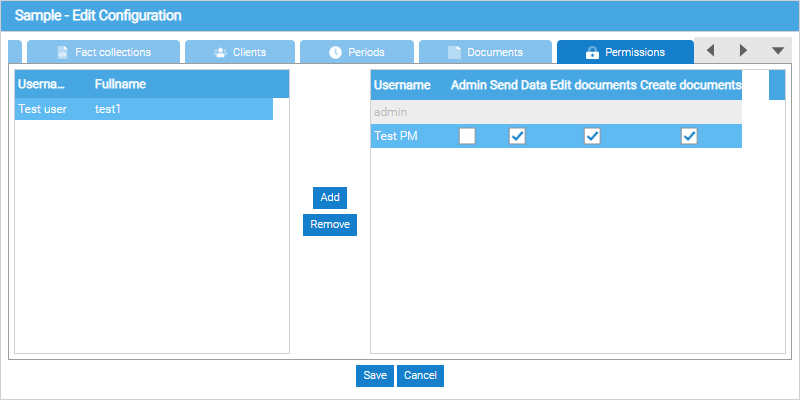
To give a user the right to access the project, a project administrator has to select a user by left-clicking them in the user list located on the left-hand side of the Permissions tab and clicking Add.
Once the user has been added to the project, the project administrator can assign\revoke the user's individual permissions by selecting\deselcting the respective checkboxes.
The project's creator is a project administrator by default. A project administrator may establish additional project administrators by selecting the Admin checkbox for each appropriate user.
| Note |
|---|
A project administrator has all of the permissions within the project. To revoke a project administrator's rights, another project administrator for the same project, must deselect the Admin checkbox for the user and then save the project configuration. |
Delete a project
To delete a project, open it first and then click Delete in the Project section of the ribbon\Project menu. As this is a destructive action that may lead to loss of data you will be prompted to confirm the deletion, and if you opt to confirm it, the project will be permanently removed,