...
To complete the creation of a new project you need to configure it first. Once the project has been created, if you are an administrator or the project's creator, you can change its configuration by clicking Configure in the Project section of the ribbon\Project menu
The settings of the project configuration are made in several riders (or tabs) in the project project's settings are split across several tabs of the Project configuration dialog.
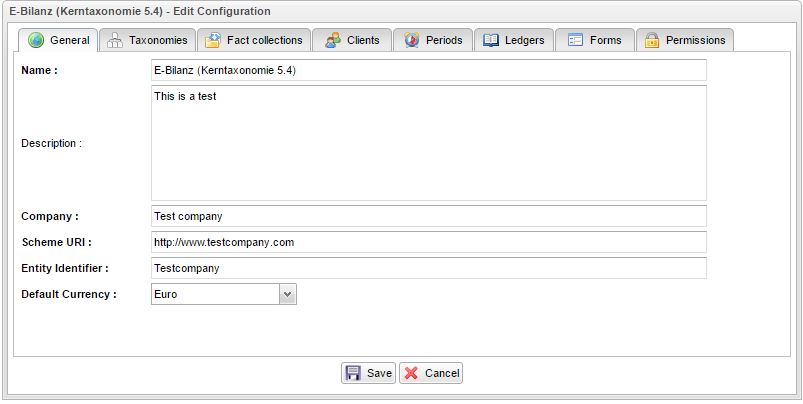
By pressing the "clicking Save" button, the current state of the settings of on all tabs are secured. When "Cancel" any changes will be preserved. Clicking Cancel will result in losing all changes made to the settings are rejected.
General
In General information is provided in the tab "General" general information has to be filled out. The fields with bold type are mandatory – in conclusion all the fields (exception “description”) must be filled out.
...
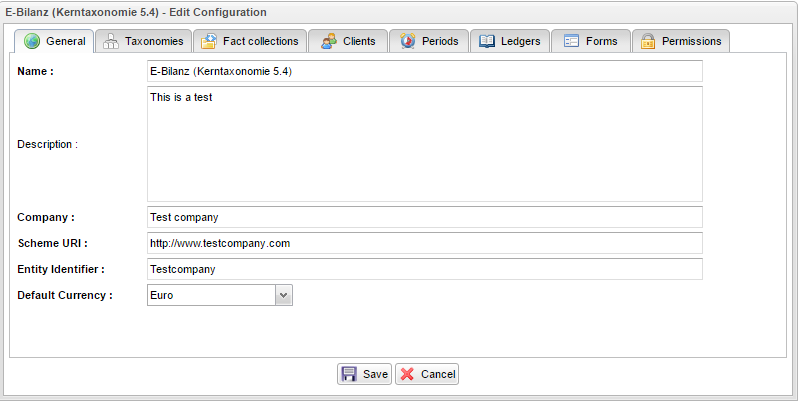
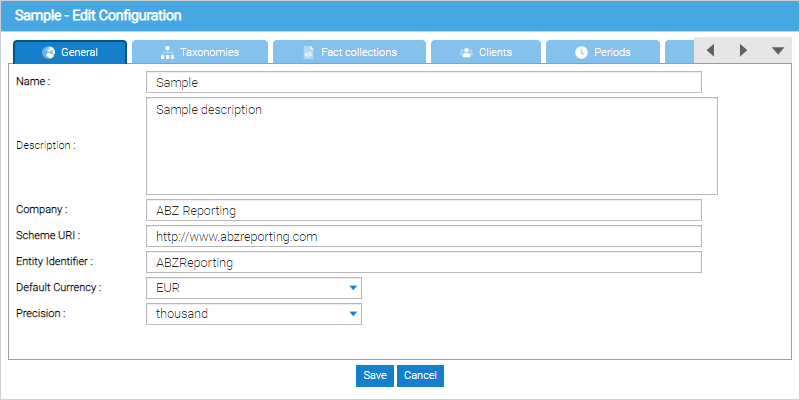
General tab. All input fields, except for the Description field, are mandatory, as indicated by the bold labels.
Name - The project's name. This will be displayed in the “Open” Open dialog and in an open project in the title bar of your browser)
- Description: Description of the content of the report project
- Company: indication of the reporting entity.From the statement of the reporting entity values are proposed for the following two fields.
- Scheme URI: specifying an internet address for the company. If the company does not have a web address, the proposed value can be accepted. Recommendation: Just accept the default value.
- Entity Identifier: Company ID. Technical specification for the production of XBRL filings, which is ignored by most data recipients. Recommendation: Just accept the suggested value.
- Default currency: default currency for monetary position values in the project
Taxonomies
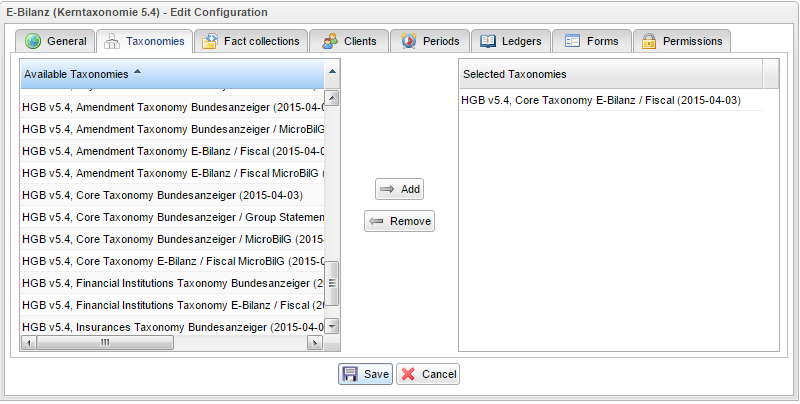
In the tab “Taxonomies”, one or more XBRL taxonomies (classification scheme) can be selected , to which positions shall be generated in the project.
| Info |
|---|
Normally in a report project one taxonomy is used, when the project is created for the purpose of creating an XBRL filing for a particular data receiver. |
...
the left corner of the tools menu bar.
- Description - A description of the report project's content and purpose.
- Company - The reporting entity. This field's contents are used to automatically proposed the values for the two fields below.
- Scheme URI - The reporting entity's internet address. Our recommendation is to accept the proposed value, even if the reporting entity doesn't have an internet address unless you are exactly sure of what you are doing.
- Entity identifier - The company ID. The technical specification required for the creation of XBRL filings. Our recommendation is to accept the proposed value unless you are exactly sure of what you are doing.
- Default currency - The default currency for monetary position values with the project.
- Precision - The default precision to be used for monetary position values within the project.
Taxonomies
In the Taxonomies tab, you can specify one or more taxonomies from which positions will be used within the project.
| Info |
|---|
Only a single ESMA ESEF taxonomy can be used for iXBRL tagging purposes |
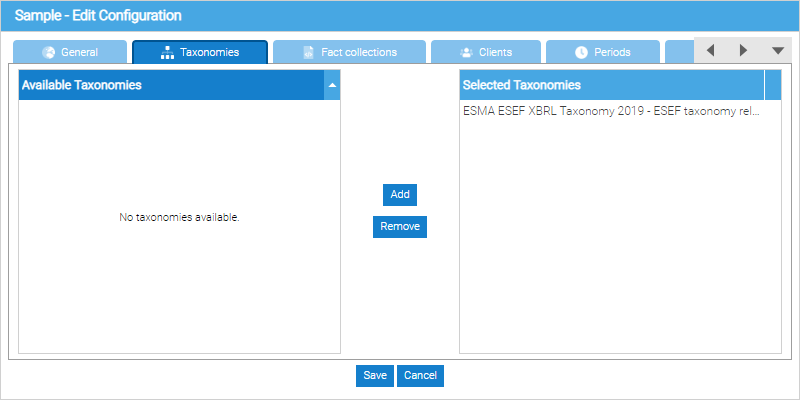
A taxonomy is added to the project by selecting it from the left-hand side taxonomy list by left-clicking and clicking Add
A taxonomy is added to the project by selecting it from the right-hand side taxonomy list by left-clicking and clicking Remove
| Tip |
|---|
To save a project, at least one fact collection taxonomy must be createdadded to the project. |
Fact collections
In the tab fact collections data is summarized. The organization of the fact collection is hierarchical, similar to a directory structure in a file system.
...
Permissions
| Note |
|---|
| This tab and its contents are only visible to the Project project administrators |
The access rights within a project report are managed relating to specific reporting functions:
- Admin: The user has permissions to all functions in a project
- Send data: running the function in the menu "Project" - "Send data"->

To give a user the right to access rightsthe project, a project administrator has to add select a user by left-clicking them in the user to the configuration list from left to right (by clicking “add”).Subsequentlylist located on the left-hand side of the Permissions tab and clicking Add.
Once the user has been added to the project, the project administrator can assign users \revoke the user's individual permissions when by selecting\deselcting the respective control boxes are activatedcheckboxes.
The project's creator of is a project is always automatically Project Administrator. The creator may establish other project administrators, if the control box "Admin" is activated for these usersadministrator by default. A project administrator may establish additional project administrators by selecting the Admin checkbox for each appropriate user.
| Note |
|---|
A project administrator has all of the permissions within the project. To revoke a project administrator's rights, another project administrator for the same project, must deselect the Admin checkbox for the user and then save the project configuration. |
Delete a project
To delete a project, open it first and then click Delete in the Project section of the ribbon\Project menu. As this is a destructive action that may lead to loss of data you will be prompted to confirm the deletion, and if you opt to confirm it, the project will be permanently removed,