...
Installation instructions
ReportFactory The ReportFactory© Tagging tool is delivered available either as a standsingle-alone version user or as a multi-user version. The setup, as specified in the license key file that is delivered in addition to the software package for installation contains information, whether it is a single user or a multi-user version. In the case of a . For the multi-user version, the license key file also contains an indication of the number of usersavailable user license.
The ReportFactory The ReportFactory© Tagging tool can be installed under Windows with using an installer or can be integrated in deployed to Windows and other operating systems as an application in an existing web server (Deployment of .war file)..
The installation with the Windows installer is usually used in for the single-user version, setup; web server deployment is recommended for the multi-user version setup or for installation on other non-Windows operating systems, the deployment is recommended in a Web server. In principleany case, ReportFactory© Tagging tool users of the reportfactory can freely decide which of the two types of installation type they want to use.
Please read To obtain more information on the installation manual to learn more about the installation details or the specific implementationdetails please refer to the installation manual.
| Info |
|---|
When you launch the ReportFactory A default user is created when you launch ReportFactory© Tagging tool for the first time a default-user is created. Username . The username and password are documented in the installation guidemanual. |
Starting after
...
Windows installer
...
If your ReportFactory was not installed with the Windows Installer, please continue with the next section! There you will find the instructions for access the ReportFactory when it is installed in a Web server.
The ReportFactory is a browser-based application that, apart from the Office Addins, can be handled through most common internet browsers.
...
installation
The ReportFactory© Tagging tool is a server-client type of application whose user interface is available through any supported browser.
Once you installed the application via the installer, you can start it by clicking Start RF server in the Windows Start menu. This will bring up the ReportFactory© Tagging tool console window.
| Warning |
|---|
| Please do not close the console window |
...
| as this would stop ReportFactory© Tagging tool! The console window can be minimized |
...
| instead. If you actually want to stop ReportFactory© Tagging tool click Stop RF server in the Windows Start menu. |
There are two user areas: If you have administrator rights, you can access the administration area to manage the ReportFactory© Tagging tool users of RF. In the general user -interfacearea, all users – which have been created through the admin area – can create report projects and work on their specific report jobsdo their work.
The admin area can be loaded by selecting "Report Factory Administration" in the Internet browser installed on the system. If there are problems starting the Internet browser, you can also launch the browser manually and enter the following addressaccessed by clicking ReportFactory admin GUI in the Windows Start menu or by starting any supported web browser and navigating to:
http://localhost:8080/reportfactory/admin
The user interface area can be accessed analogue either by calling "Report Factory interface" or by entering the following address in your browserby clicking ReportFactory GUI in the Windows Start menu or by starting any supported web browser and navigating to:
http://localhost:8080/reportfactory
After calling the browser address a login screen appears.
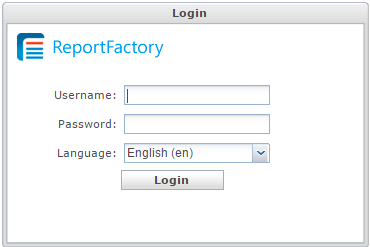 The following login screen will appear in your browser:
After logging in, the user menu ribbon appears.
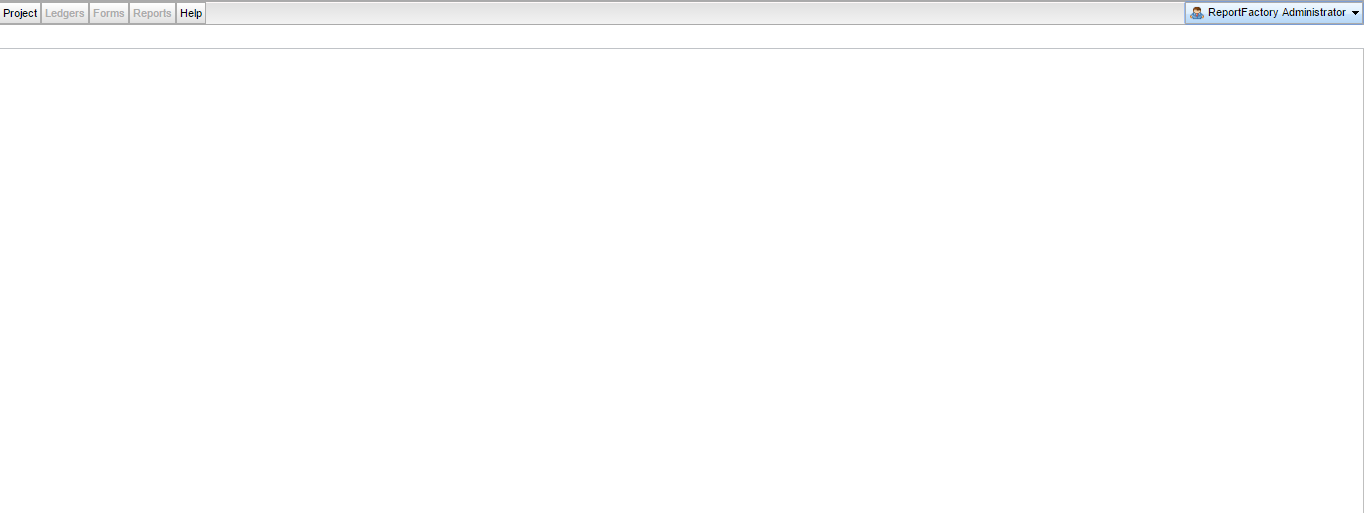
In the upper right corner, the user name of the logged in user is displayed (here "Administrator").

If you have not logged out after you have used the report Factory the last time and your Internet browser has stored the credentials, it can be that the login menu will be skipped and the user menu of the Report Factory is displayed directly.
Starting after
...
webserver deploy
There are two user areas: If you have administrator rights, you can access the administration area to manage the ReportFactory© Tagging tool users of RF. In the general user-interface, all users – which have been created through the admin area – can create report projects and work on their specific report jobsdo their work.
The admin area can be loaded by calling an address in the Internet browser. The URL of the call depends on the address of the server on which the ReportFactory is installed. The start address has the following structureaccessed by starting any supported web browser and navigating to:
<server:port>/reportfactory/admin
The user interface area can be accessed by entering the following address in your browserstarting any supported web browser and navigating to:
<server:port>//reportfactory
| Note |
|---|
| Please check with your system administrator for the |
...
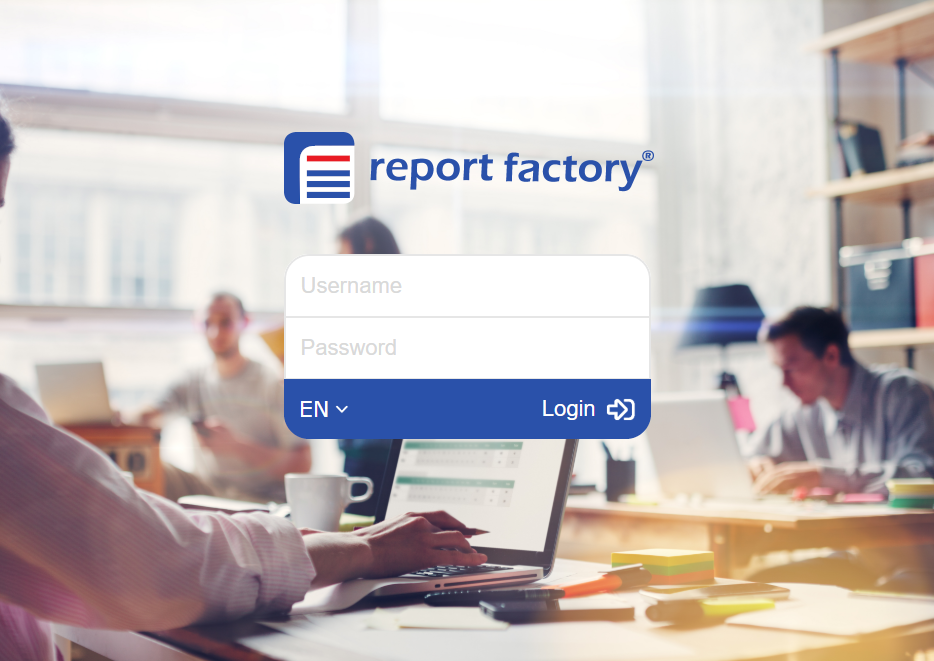
After calling the browser address a login screen appears.
...
| exact server and port used by ReportFactory© Tagging tool |
The following login screen will appear in your browser:
After logging in, the user menu of the RF ribbon appears.
In the upper right corner, the user name of the logged in user is displayed (here "Administrator").
If you have not logged out when you last used the report Factory and your Internet browser has stored the credentials, it may be that the application form will be skipped and the user menu of the Report Factory is displayed directly.
Password change/
...
Logout
A user must be logged in to change their password. The user menu User menu located in the Account ribbon section on the top right offers the following two functions:
- Change Password
- Logout

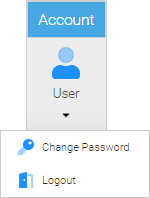
To change the password, please proceed as follows:
Select the menu item "Change Password". Then the following menu dialog appears:
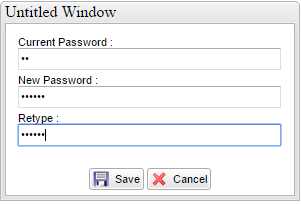
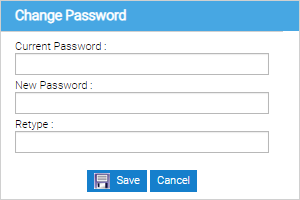
"Current Password" - Please type here your old password, which shall be changed. Now enter in the input fields "New Password" and "Password repeat" the new password. Then confirm the entry by pressing the OK button.
To log out, select navigate to the user User menu and select "click Logout". Then the The login dialog appears again and re-login.
| Note |
|---|
Please note that the registration information information is stored by your Internet browser. Therefore, you should log out after you have finished your work to ensure that no other user can access the ReportFactory from your computer without authorization. |
Create
...
a user account in a multi-user version
...
In The administration area users are created and managed. A user must be assigned a login name, a real name and a password. New users are defined by clicking the "New" button.
...